First time here
Cherry Studio
Write and translate in Chat; generate and edit a single image in Paintings.
- Protocol
- Chat Completions · Images
- Support status
- 2.1.3 · macOS 26.6.2 · tested 2026-09-25; limits below
Before you begin
Use the Albatross console to sign in and manage your account. Client API Host uses https://staging-gateway.bulakua.com; it is a different address. Site navigation stays in the current environment. When previewing locally, use the console for the environment you intend to call; keys and usage belong to that same environment. Add /v1 only where the instructions below require it.
Get your Gateway address (the Albatross service address), API Key (your access credential) and exact allowed model name from your service administrator. Log in to the console to check model permissions, available quota and balance. A catalog listing alone does not grant access.
Keep your existing providers and conversations. Add a separate Albatross configuration. A CherryIN, Chatbox AI, ChatGPT or Claude subscription does not fund Albatross requests.
1. Download and install
- Download the stable build for your system. On Apple silicon choose arm64; install and open Cherry Studio. Review the first-run privacy agreement yourself.
- You do not need to buy or sign in to CherryIN for this Albatross configuration.
2. Add the Albatross provider
- Open Settings → Model Provider. Add a provider named Albatross and choose OpenAI compatibility.
- Enter https://staging-gateway.bulakua.com in API Host and your Albatross key in API Key. Do not enter the console address here. Leave the key masked.
- Use Sync to fetch models and add only the exact text and image aliases allowed for your key. If entering manually, copy the IDs returned by GET /v1/models; a display name does not grant permissions. Enable the provider.
- Choose <ALBATROSS_MODEL> (the exact text alias returned for your key) for default chat, quick and translation models. Verify may send a paid test request. If Verify fails, keep its error and test a short conversation separately.
3. Chat and keep the result
- Select Chat in the sidebar, create a topic, and choose Albatross / <ALBATROSS_MODEL>. The Work agent and its local API Gateway prompt are a different feature.
- Send a short Chinese question. Wait for the stream to finish. Use the response Copy action; its Copied confirmation indicates completion. More actions → Export → Markdown opens a save dialog.
- Continue in the same topic to preserve context. Start a new topic for a different task. Use Pause during generation if needed; inspect any partial text before continuing.
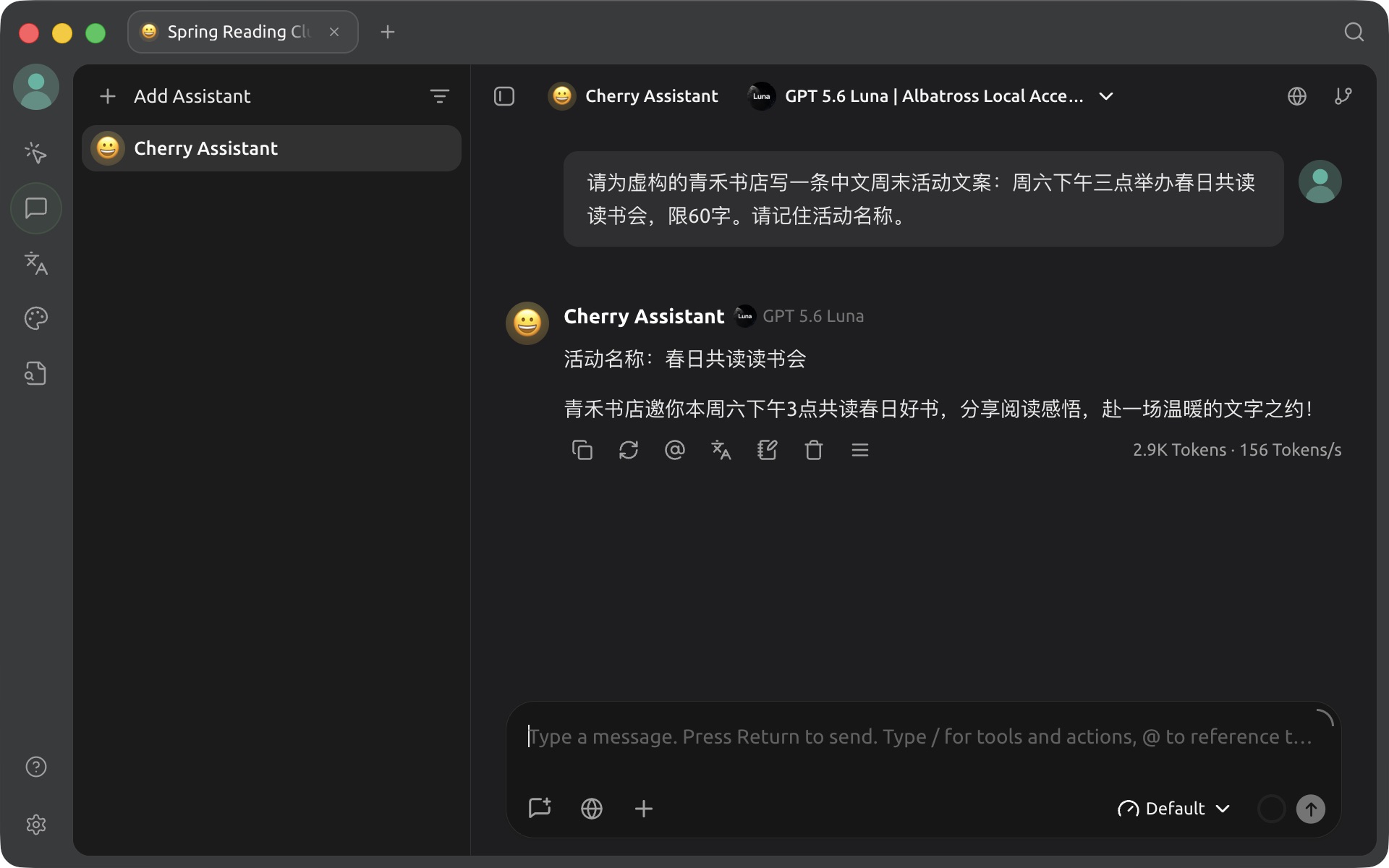
Work example: a bookstore invitation
- Start a new chat with <ALBATROSS_MODEL>, the exact text alias allowed for your key. Send: Write a Chinese invitation under 60 characters for the fictional 青禾 bookstore's 春日共读 reading event, Saturday at 3 pm. Remember the event name.
- Wait for generation to finish, then ask: Translate that invitation into English, keeping the time and event name, under 40 words.
- Check the date, time and event name yourself. A successful result contains Chinese copy and an English follow-up with the same event details. Copy the approved version into your draft, then export the conversation for your own records.
4. Generate and edit an image
- Generate — set up: open Paintings → New Image, select <ALBATROSS_IMAGE_MODEL>, the exact image alias allowed for your key. Choose one image, square 1024×1024 and Low quality. Enter: a green book and yellow sun on a cream background, no lettering.
- Generate — send: click Send, then wait for the completed image preview. Return alone may just edit the prompt; do not repeatedly press Send while waiting.
- Generate — save: right-click the completed image → Save As, choose a filename and folder, and wait for Saved. This completes generation. To modify an existing image instead, follow the editing steps below.
- Edit — prepare the file first: choose one PNG, JPEG or WebP (up to 10 MiB). For a genuine JPEG ending in .jpg, copy it with a .jpeg extension before uploading. The tested .jpg path sent image/jpg and was rejected; the identical .jpeg copy sent image/jpeg and succeeded. Renaming a non-JPEG does not convert it.
- Edit — upload: open Paintings → New Image and select Albatross / <ALBATROSS_IMAGE_MODEL>, one image, square and Low. Click Add image, choose the prepared file, and describe the change, for example: change only the background to blue and keep the subject unchanged.
- Edit — send and save: click Send, then wait for the completed preview. Check the requested change, right-click → Save As, and save under a new filename to keep the original. Wait for Saved.
Costs and getting help
Albatross Usage and wallet records are the customer bill. Client token counters or price estimates are not your bill; upstream procurement costs are separate. Titles, connection tests and tool continuations may each send paid requests. Stop repeated retries when a request fails.
Invalid Key means checking the Albatross credential. Insufficient quota means checking Albatross balance and limits, not buying a client subscription. For Too Many Requests, wait before retrying; for Gateway Timeout, check Usage before sending again. Both clients displayed these errors in controlled tests; only the invalid-key test reached the local Gateway, with a synthetic key. Quota, rate-limit and timeout responses were simulated without upstream calls.
Contact your Albatross service administrator with the client version, model, time and time zone, error text and request ID if visible. Remove keys, account details and private content from screenshots. Check Usage for keys you can view; ask your organization administrator to check an organization-owned key. Missing records do not mean no charge. Cancelling locally does not guarantee zero upstream work or zero charge.
Use one provider with multiple models
- Keep one Albatross OpenAI-compatible provider. API Host is https://staging-gateway.bulakua.com (without /v1); enter the key once.
- Sync models or manually add exact text aliases from GET /v1/models. Select a different alias for each chat, quick or translation model.
- Use the separately published image alias only in Paintings.
Albatross / <ALBATROSS_TEXT_FAST_ALIAS>
Albatross / <ALBATROSS_TEXT_QUALITY_ALIAS>